

The FILTER and USERELATIONSHIP Conundrum



I recently received an email asking about a tricky DAX issue: combining FILTER and USERELATIONSHIP in a single CALCULATE statement. This is a common question, and it turns out, it’s not as simple as it seems. In this newsletter, we’ll dive into why these functions don’t work together as expected and explore some potential solutions. Let’s solve this DAX puzzle together!
Question:
Hi Paul, have you ever tried to do both a FILTER and a USERELATIONSHIP in one CALCULATE statement? It doesn’t work. And everything online also points to the fact that it doesn’t work. I am struggling with a solution. Have you ever come across this?
Answer:
Combining FILTER and USERELATIONSHIP in a single CALCULATE can be tricky. USERELATIONSHIP activates an inactive relationship within CALCULATE, but it doesn't always play well with complex FILTER operations. The issue usually arises because USERELATIONSHIP and FILTER can create conflicting filter contexts, leading to unexpected results.
One workaround is to break it down by creating separate measures. Here’s a two-step approach that might work:
Step 1: Create an intermediate measure that uses USERELATIONSHIP only, setting up the needed relationship.
Step 2: Use that intermediate measure within a CALCULATE that includes your FILTER logic.
Here’s an example to demonstrate:
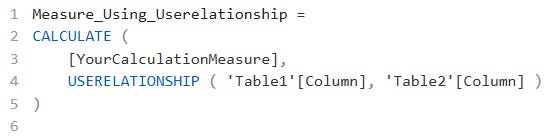
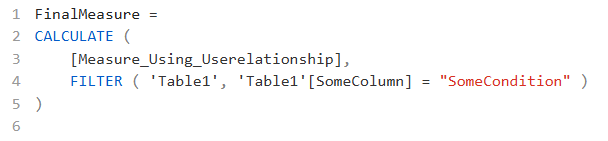
This approach helps keep clarity and avoids the common pitfalls when combining FILTER and USERELATIONSHIP directly.
Alternatively, you could try TREATAS, which can sometimes provide similar outcomes as USERELATIONSHIP but allows more flexibility within CALCULATE.
So, the friend let me know that this is the measure being used and it was not working right:
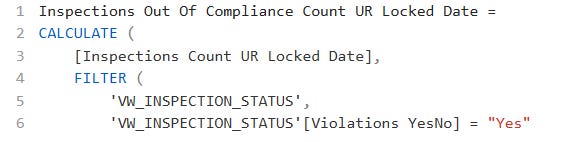
After investigating the data, I noticed there was a calculated column in her FCT Table named overall compliance rating.

To incorporate both USERELATIONSHIP and the filter conditions into a single calculation, let's start by breaking it down. Since USERELATIONSHIP doesn’t always work directly with added filters, let’s walk through this to see how to work around the issue.
Overview of the Problem
We’re trying to create a measure that counts inspections meeting certain criteria:
The inspection must have a violation (
Violations YesNoset to "Yes").The
Overall Compliance Rating Descriptionshould be either "D," "O," or "V."The measure should use an inactive relationship between
VW_INSPECTION_STATUS[TMSP Locked]andCalendar[Date].
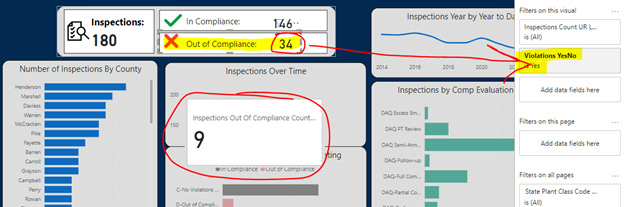
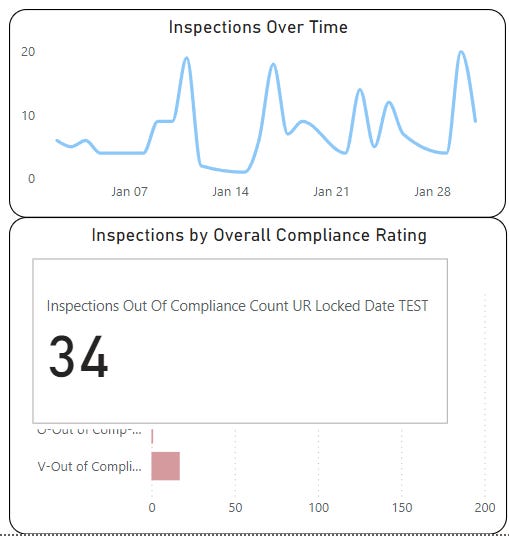
This has proven challenging because CALCULATE can behave differently when USERELATIONSHIP and multiple filters are combined. Our expected result is a count of 34, but our initial measure returned only 9. This tutorial will show how we debugged and ultimately resolved the issue.
Step 1: Initial Measure (Not Working)
Here’s the first measure we started with, which didn’t return the correct value.
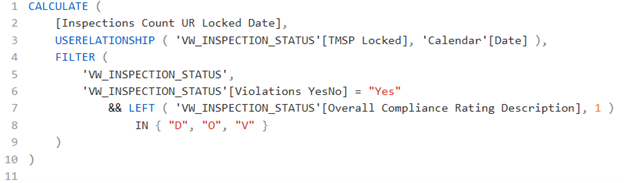
And we know the one earlier is connected to this measure [Inspections Count UR Locked Date] didn’t work either.
Explanation:
We applied the inactive relationship using USERELATIONSHIP.
Then, we used FILTER to limit rows to only those with
Violations YesNo= "Yes" andOverall Compliance Rating Descriptionbeginning with "D”, "O", "V"
Problem: This measure returned 9 instead of the expected 34. We knew this by verifying the math in Excel. I highly recommend checking the math in Excel to ensure your DAX measure returns the same result. Next, we started the troubleshooting process to find the issue.
Step 2: Debugging Each Filter Condition Separately
To find the problematic condition, we isolated each part of the measure into separate calculations.
2.1 Filter for Violations YesNo Only
This measure tests if filtering for Violations YesNo = "Yes" works correctly on its own.
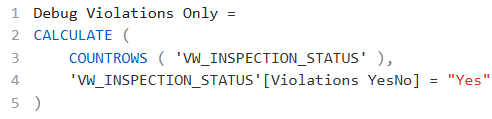
Explanation: This measure counts rows where Violations YesNo is "Yes".
Expected Outcome: Should return the count of inspections with violations.
2.2 Filter for Compliance Rating Only
This measure checks if filtering for Overall Compliance Rating Description ("D", "O", "V") works on its own.

Explanation: This counts rows where the compliance rating is "D", "O", "V".
Expected Outcome: Should return the count of inspections with the specified compliance ratings.
Step 3: Adding USERELATIONSHIP to the Combined Filters
Once we confirmed that each condition individually and jointly worked without issues, we added USERELATIONSHIP back to the measure to test it in combination with the filters.
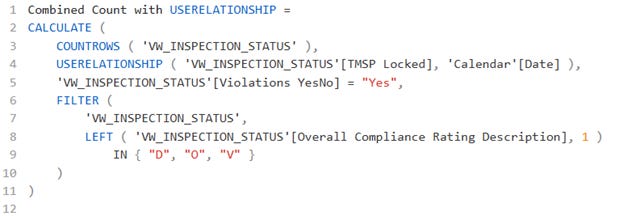
Explanation: We activate the relationship with USERELATIONSHIP and apply both filters for violations and compliance ratings.
Outcome: This measure should now reflect all three conditions accurately.
Step 4: Final Measure
After confirming that each filter works both individually and in combination with USERELATIONSHIP, we were able to use the following measure as the solution:
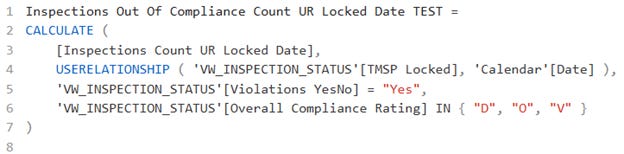
Explanation:
This final measure combines
USERELATIONSHIPwith the individual filters applied sequentially withinCALCULATE.Breaking down the filters helped clarify that each condition worked as expected and using them outside of
FILTER()optimized the measure’s performance.
Outcome and Explanation
The final measure now correctly returns 34, as expected. The solution was to apply each filter sequentially, without nesting them in a FILTER function, which helped DAX more effectively interpret each condition.
Conclusion
In this article, we walked through:
Finding the first problem when combining USERELATIONSHIP and filters.
Debugging each filter condition independently.
Combining filters step-by-step and reintroducing
USERELATIONSHIP.Achieving the correct result by improving the measure’s structure.
This process highlights the importance of isolating filters and troubleshooting each condition individually when complex relationships and filters are involved in DAX measures.
I will try to post a video on my YT Channel explaining what I did to help my friend out.